Sample player (and recorder) exploring random file access concept as a method for generating non-repeating soundscapes from bits of jam sessions, field recordings, glitches, voices, natural sounds, etc...
Designed for iPad (works also on Mac computers with Apple silicon / Ventura minimum).
There are 3 pages/sections: PLAY, REC, and JAM.
PLAY PAGE
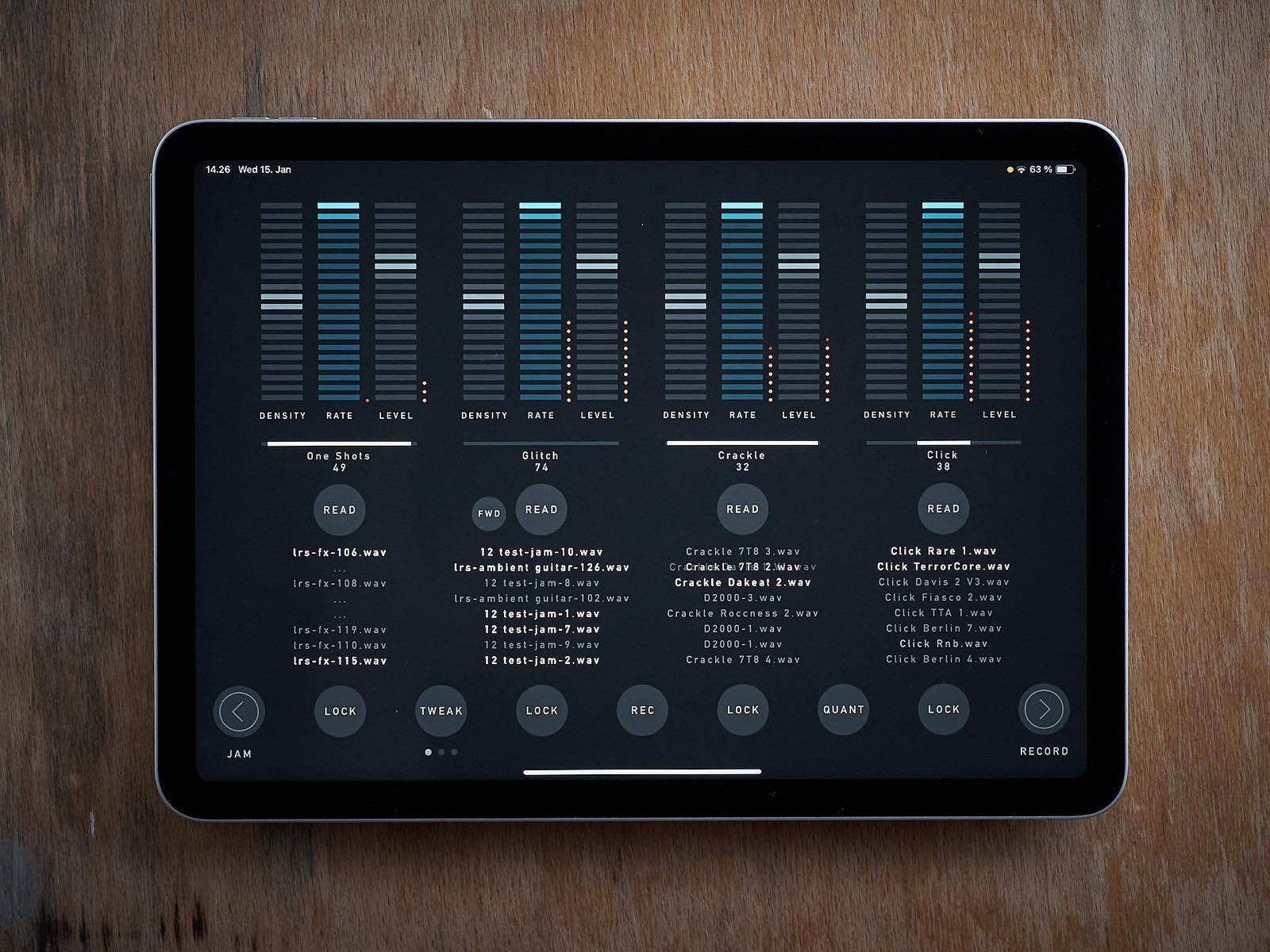
There are 4 slots. Each can have a separate directory (containing audio samples) assigned - assign directory using the READ button. Slots have the following parameters:
- DENSITY affecting the number of samples played at the same time (max 8 per slot);
- RATE controlling playback speed;
- LEVEL controlling the slot’s overall volume.
- REPEAT setting the probability that a sample will be repeated;
- REVERSE setting the probability that a sample will be played backwards;
- LOW PASS filter frequency;
- HIGH PASS filter frequency;
- RESONANCE affecting both filters;
- LOCK causing the slot’s currently playing samples to loop.
Individual samples have their volume and pan slightly randomized.
PLAYBACK EXPLAINED
If a sample is selected to be played, its name appears in the slot’s column. If it is currently played, its name appears brighter; if it is being played backwards, its name is displayed backwards.
If a sample has played and the slot’s REPEAT value is set to minimum, it will not play again until all other unused samples in its slot/directory have been played. A horizontal line above the READ button displays the amount of played/not yet played samples present in the directory read by the slot. The process restarts when all the samples have been used.
If a new directory is selected, it will not play until all samples from the current directory are used unless the FWD button is pressed (the FWD button is visible only if a new directory is queued) - in that case, samples from the original directory that are already scheduled will still be played before samples from the new directory are queued. Supported audio file types are WAV, MP3, AIF, AAC, and M4A.
OTHER CONTROLS
- TWEAK used to access additional parameters (cycles through 3 sets).
- QUANT (shown when RATE setting is visible) limits RATE value to semitones (RATE range is 0 to -2 octaves when unquantized/smooth and is 0 to -12 semitones when quantized).
- LINK (shown when filters settings are visible) links both filters’ frequency controls.
- MULTI appears only if an audio device with at least 8 outputs (4 stereo) is detected and is used to assign each slot to a separate stereo pair (record function is in that case disabled as it only supports 2-channel stereo files). This control is available only right after the app’s launch.
REC PAGE
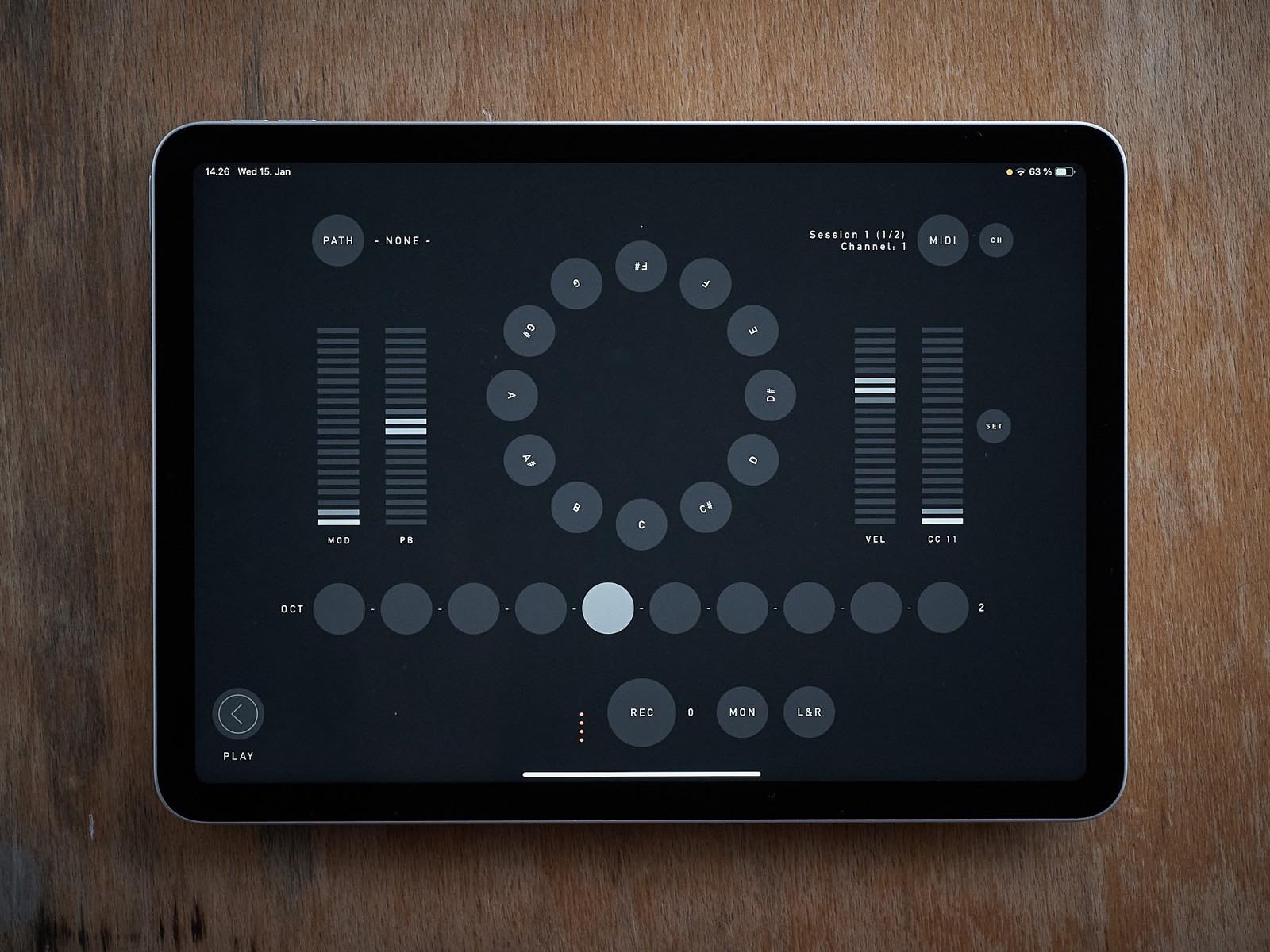
REC page provides a way to record acoustic samples or sounds from MIDI-controlled synths. Audio input can be recorded to mono or stereo (L+R button) WAV files. If the recording directory is also assigned to one of the playback slots, newly recorded material is added to the playback pool automatically.
Recording directory is selected using the PATH button. Names of the newly recorded samples will be derived from the target directory name (directory name + index).
Incoming audio can be sent to outputs 1-2 for monitoring (MON). The L+R button activates stereo mode - stereo samples will be recorded using the signal from input channels 1-2.
Integrated “MIDI controller” can be used to send MIDI notes, mod-wheel, pitch bend, and one CC message to a selected MIDI destination. Cycle through available destinations by tapping the MIDI button (destinations are scanned when the app is started). MIDI channel can be set using the CH button.
JAM PAGE
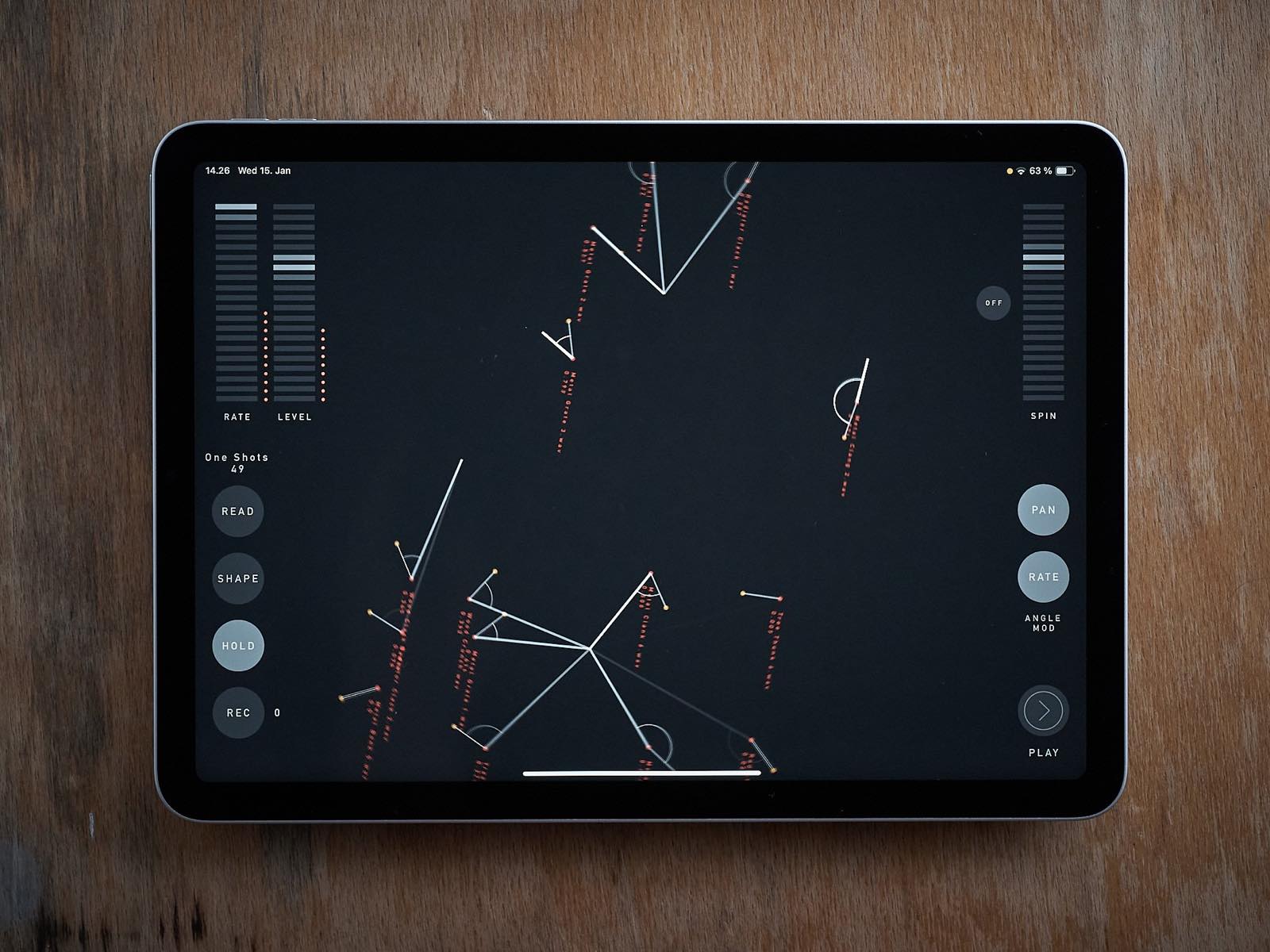
JAM page is a touch interface proximity sample player. There are 15 oriented locations randomly placed on a plane. Each location has a looping sample assigned. When the user touches the screen, distance and angle are detected and used as playback parameters. Distance controls volume; angle can be assigned to control PAN and/or playback speed (RATE). The shortest distance takes priority if multiple touches are present.
To assign samples to locations, select the directory containing audio files - READ button (samples are assigned randomly and are set to loop in the background indefinitely). The SHAPE button randomizes locations and orientations. Use the HOLD button to lock current touch points in place. The underlying plane containing the sample location can be rotated using the SPIN touch strip.
sqsl RSVP is a standalone application; it cannot be used as an AUv3 plugin.
TIPS and REMARKS
- To streamline browsing/selecting folders for playback, apply color tags to folders containing audio samples (long-press on the folder’s name in the Files app and select color).
- Some slider controls have “dead zones” towards min and max values, meaning zero is set before the slider is brought to its lowest position. For example, filter frequency controls will display “–” in their readout above sliders when minimum or (maximum for high pass) is achieved; in that case, the filter is completely bypassed. The same logic applies to the slots VOLUME control - tapping close to its bottom edge will cause the slot to be muted.
- In order to play samples from folders located in the cloud, the app needs to download them to the device. When a sample is not available for playback (not currently on the device), the app will display 3 dots instead of the sample name, launch a downloading request, and after a few seconds, it will attempt to load another sample from the assigned folder.